




When a problem occurs, Live2D may ask you to submit log.txt in order to investigate the cause.
Please follow the steps below to check the file.
Retrieve a Cubism Editor log
If the Editor can be launched
Step 1
Launch the Editor.
Launch Live2D Cubism Editor.
If you cannot open with the PRO version, launch using the FREE version.
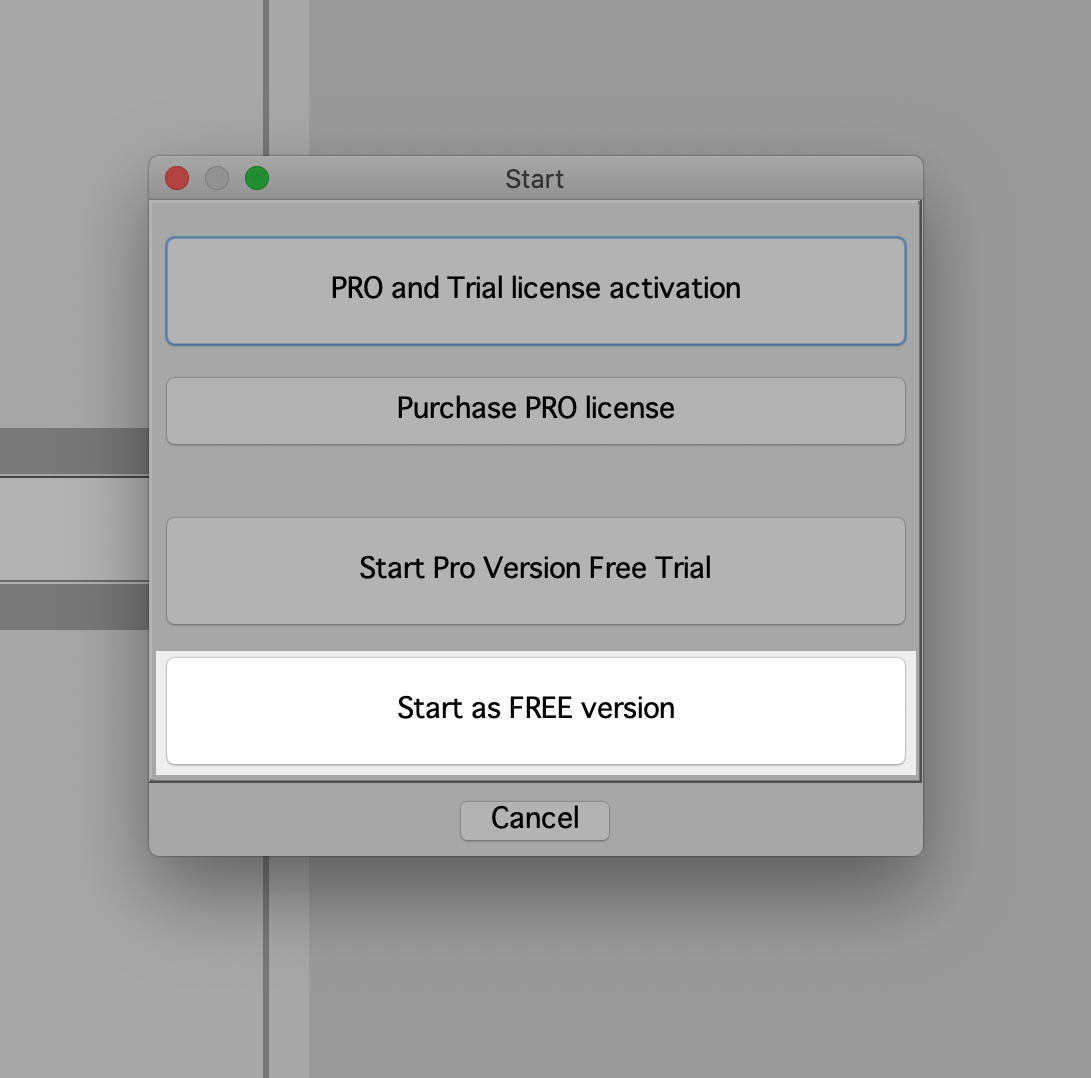
If you cannot open with the PRO version, launch using the FREE version.
Step 2
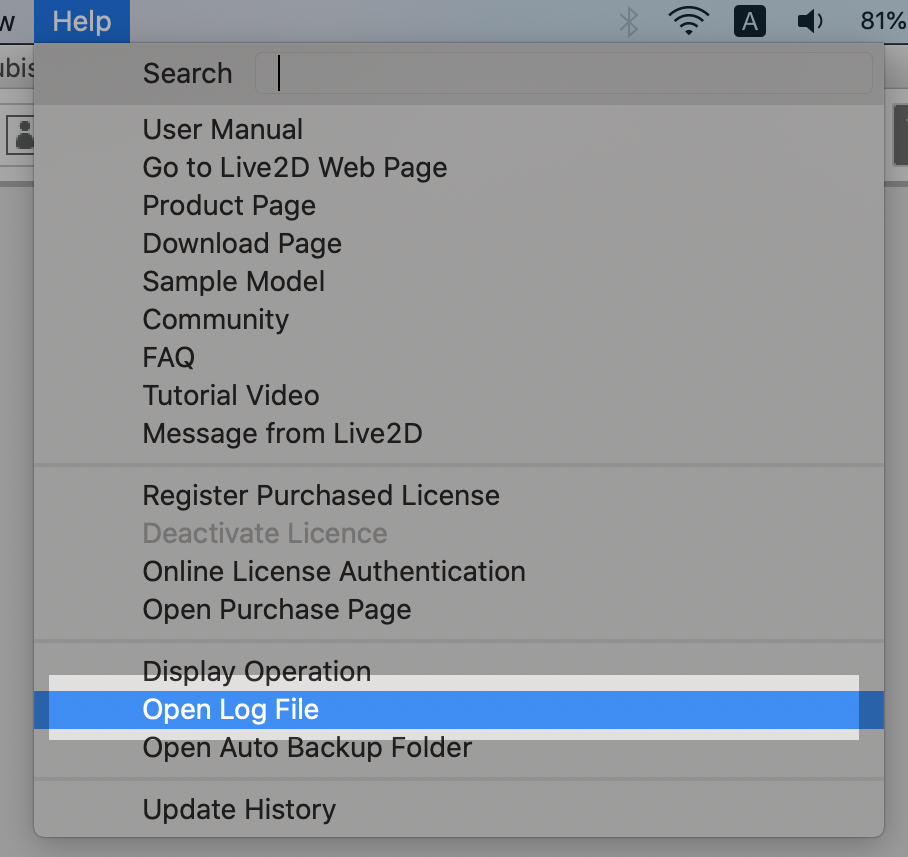
Open the log file folder.
Click [Open log file] under Help in the top menu.
STEP.3
Retrieve a log file
A log file with the following filename is stored.
There may be more than one log file.
Please copy and retrieve the log file to another location, such as your desktop, and submit it to us via email or contact form.
There may be more than one log file.
Please copy and retrieve the log file to another location, such as your desktop, and submit it to us via email or contact form.
log.txt
log_(a list of numerical values).txt
If the Editor cannot be launched
STEP.1
Open the log file folder.
Open the file path with Explorer for Win and Finder for Mac.
Windows
C:\Users\(username)\AppData\Roaming\Live2D\CubismX(version name)_Editor\logs
macOS
/Users/(username)/Library/Live2D/CubismX(version name)_Editor/logs
STEP.2
Retrieve a log file.
A log file with the following filename is stored.
There may be more than one log file.
Please copy and retrieve the log files to another location, such as your desktop, and submit it to us via email or contact form.
There may be more than one log file.
Please copy and retrieve the log files to another location, such as your desktop, and submit it to us via email or contact form.
log.txt
log_(a list of numerical values).txt
Retrieve a Cubism Viewer log
If the Viewer can be launched
STEP.1
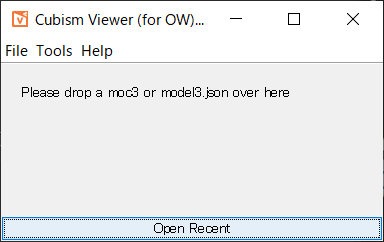
Launch the Viewer
Launch Live2D Cubism Viewer.
STEP.2
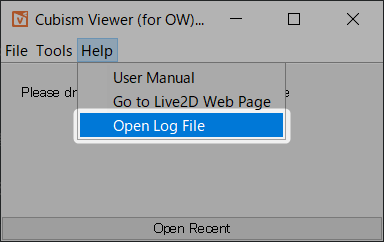
Open the log file folder.
Click [Open log file] under Help in the Viewer menu.
STEP.3
Retrieve a log file.
A log file with the following filename is stored.
There may be more than one log file.
Please copy and retrieve the log files to another location, such as your desktop, and submit it to us via email or contact form.
There may be more than one log file.
Please copy and retrieve the log files to another location, such as your desktop, and submit it to us via email or contact form.
log_Viewer.txt
If the Viewer cannot be launched
STEP.1
Open the log file folder.
Open the file path with Explorer for Win and Finder for Mac.
Windows
C:\Users\(username)\AppData\Roaming\Live2D\CubismX(version name)_Viewer
macOS
/Users/(username)/Library/Live2D/CubismX(version name)_Viewer
STEP.2
Retrieve a log file.
A log file with the following filename is stored.
There may be more than one log file.
Please copy and retrieve the log files to another location, such as your desktop, and submit it to us via email or contact form.
There may be more than one log file.
Please copy and retrieve the log files to another location, such as your desktop, and submit it to us via email or contact form.
log_Viewer.txt


 Loading...